 SelectrIn beta
Less sorting.
More keepers.
Choose your best photos on iPad before importing them into Lightroom or another editor. Start editing with a focused selection instead of the entire shoot.
- Open a folder. No catalog setup.
- Make your selection away from your desk.
- Bring only the keepers into your editor.
For iPad and iPhone · No account required.
Your workflow
From shoot to edit.
Bring in your shoot
Import from a memory card to a folder or SSD, or open a photo folder you have already copied.
Choose your keepers
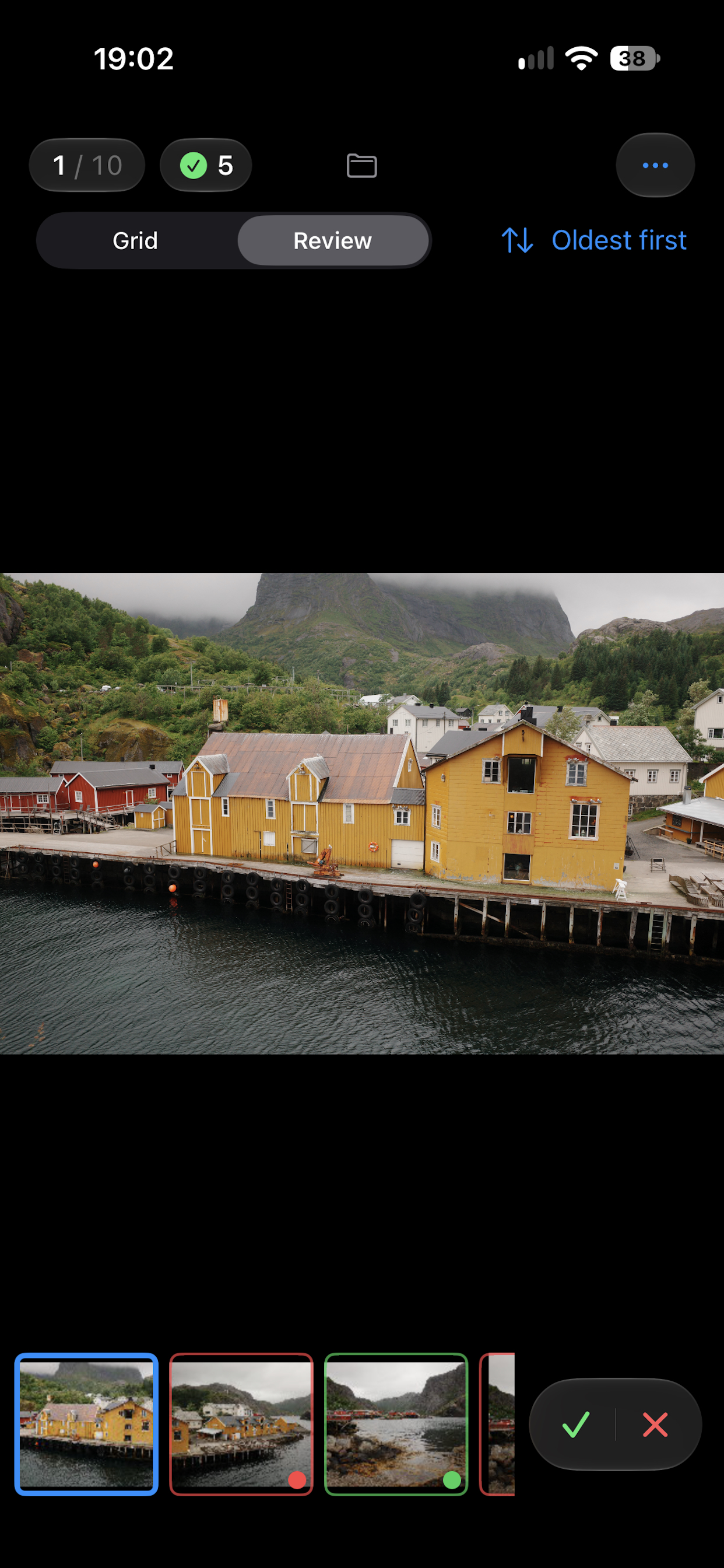
Review RAW and JPEG photos on iPad or iPhone. Pick the ones worth editing and reject the rest.
Export your selection
Copy your picks into a folder of your choice. Your source files stay in place.
Start editing
Import that folder into Lightroom or your favorite editor, with the first round of decisions already made.
01 / Culling
A whole shoot.
A clear selection.
Open a folder directly from Files or a connected drive. There is no catalog to create before you start choosing the photos worth editing.
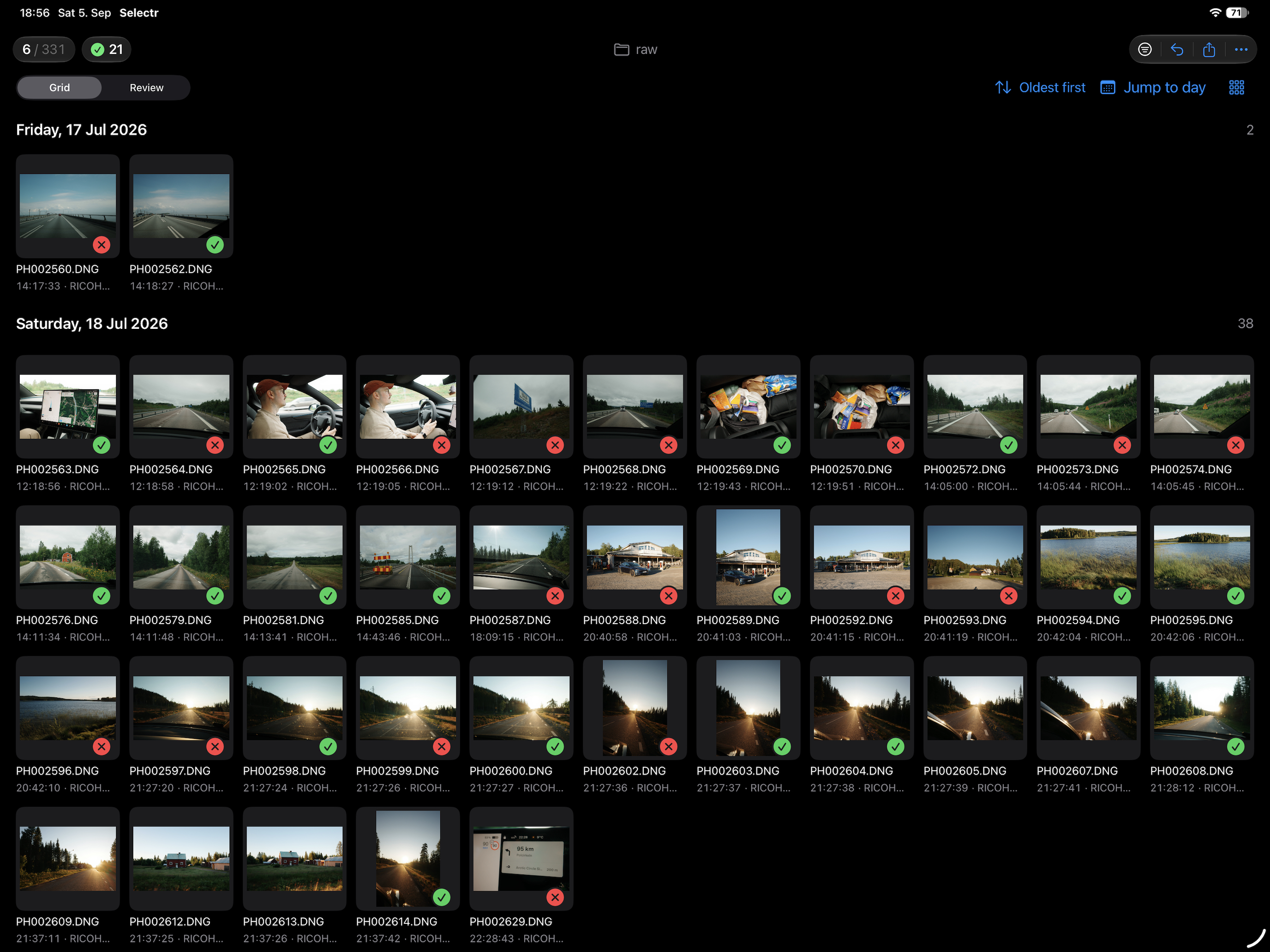
See the whole shoot
Switch between a grid, a detailed list, and a large photo view. Sort by capture time or filename and jump between days.
Keep the decisions moving
Swipe, tap, or use your keyboard to pick and reject. Filter your selection and undo a decision when you change your mind.
Look a little closer
Zoom into the image and check camera, lens, and exposure details. Matching RAW and JPEG files stay paired for review and export.
02 / Import & export
From card to
your next edit.
Start with photos you already copied, or import from a memory card into a folder or SSD. When your selection is ready, send the keepers on to your editing workflow.
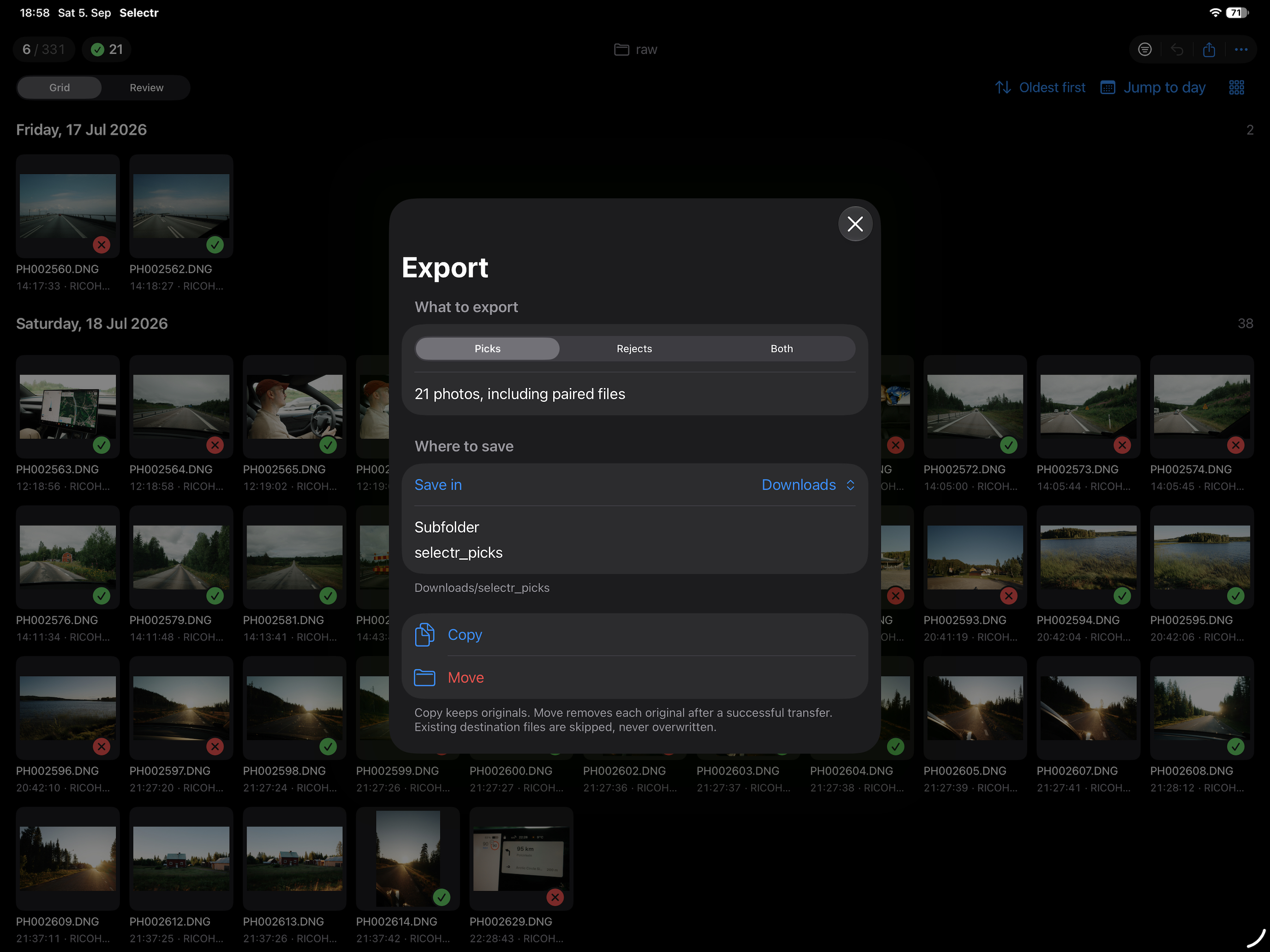
- Keep the files you needExport picks, rejects, or both into separate folders, with optional RAW and JPEG subfolders.
- Copy with confidenceCopy keeps the originals in place. Transfers verify copied file contents and show completed, skipped, and failed files.
- Pick up where you left offKeep progress saving enabled to return to a recent folder with your review decisions intact.
03 / Collections
ExperimentalYour favorites.
In the order you imagined.
Some photos are already edited. They just need to come together. Collections helps you build a sequence from favorites across your Apple Photos albums.
- 01
Gather
Browse several Apple Photos albums together and add the images you want to keep in your story.
- 02
Arrange
Put your selection in order, preview the sequence, and return to a saved draft whenever you like.
- 03
Export
Save new JPEG copies to a new or existing album, including your current Photos edits. Your originals stay in place.
Collection exports are JPEG copies up to 2048 pixels on the long edge. Full Photos library access is required to browse albums.
Your sessions stay
on your device.
No account, advertising, or tracking in Selectr. Review progress and collection drafts are stored locally. Apple Maps and cloud photo or file services can use the internet.
Read about Selectr privacyGood to know.
Where can I use Selectr?
Selectr is designed for iPad and also runs on iPhone. The current build requires iPadOS 26.2 or iOS 26.2 or later. The app is currently in beta through TestFlight; contact us below about testing.
Which photo formats can I review?
Selectr supports DNG, CR3, CR2, ARW, NEF, RAF, ORF, and RW2, plus JPEG and HEIF. Preview availability depends on your camera format and operating system. For JPEG-only folders, choose All supported images in Settings before opening the folder.
Do I need a card reader or external drive?
No. You can start with a photo folder in Files. A compatible card reader or drive lets you import photos from a memory card or work with folders on external storage.
What does Collections export?
Collections creates JPEG copies up to 2048 pixels on the long edge, including the current edits from Apple Photos. Smaller photos are not enlarged. It requires full Photos access to browse albums and does not alter or delete the originals.
Where are my sessions and collections stored?
On your device. Selectr does not upload your photos, review decisions, or collection drafts to Heimspiel. There is no account or server-based session sync. Apple Maps, iCloud Photos, and cloud file providers can use the internet when you use those features.
Made by Heimspiel IT
Help shape what comes next.
Interested in testing Selectr, have a question, or found something that could work better? Get in touch.
moin@heimspiel.itFor support, include your Selectr version, device, and the steps that led to the issue. Screenshots on this page show an earlier beta; the interface may differ in the current build.